
Prerequisites
- An active UNITIX Soft CRM account.
- An active Zoom account.
- Permission to manage Booking settings and integrations.
- A configured booking page.
- A stable internet connection and permission to open Zoom OAuth authorization pages.
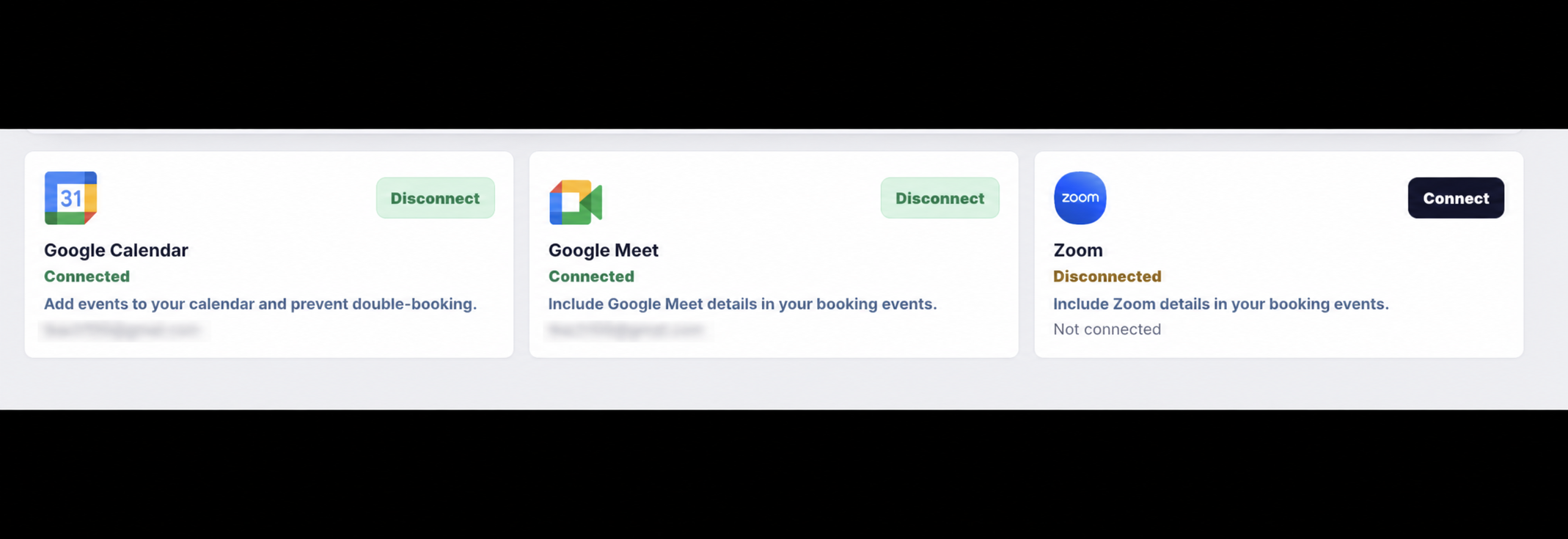
Connect Google Calendar and Google Meet
- Open booking integration settings and choose Connect Google Calendar.
- Sign in with the Google account whose calendar should be checked.
- Review and approve the requested calendar permissions.
- Return to CRM and confirm that the connected email is displayed.
- Choose Google Meet for booking pages that should automatically receive a Meet link.
Create a booking page
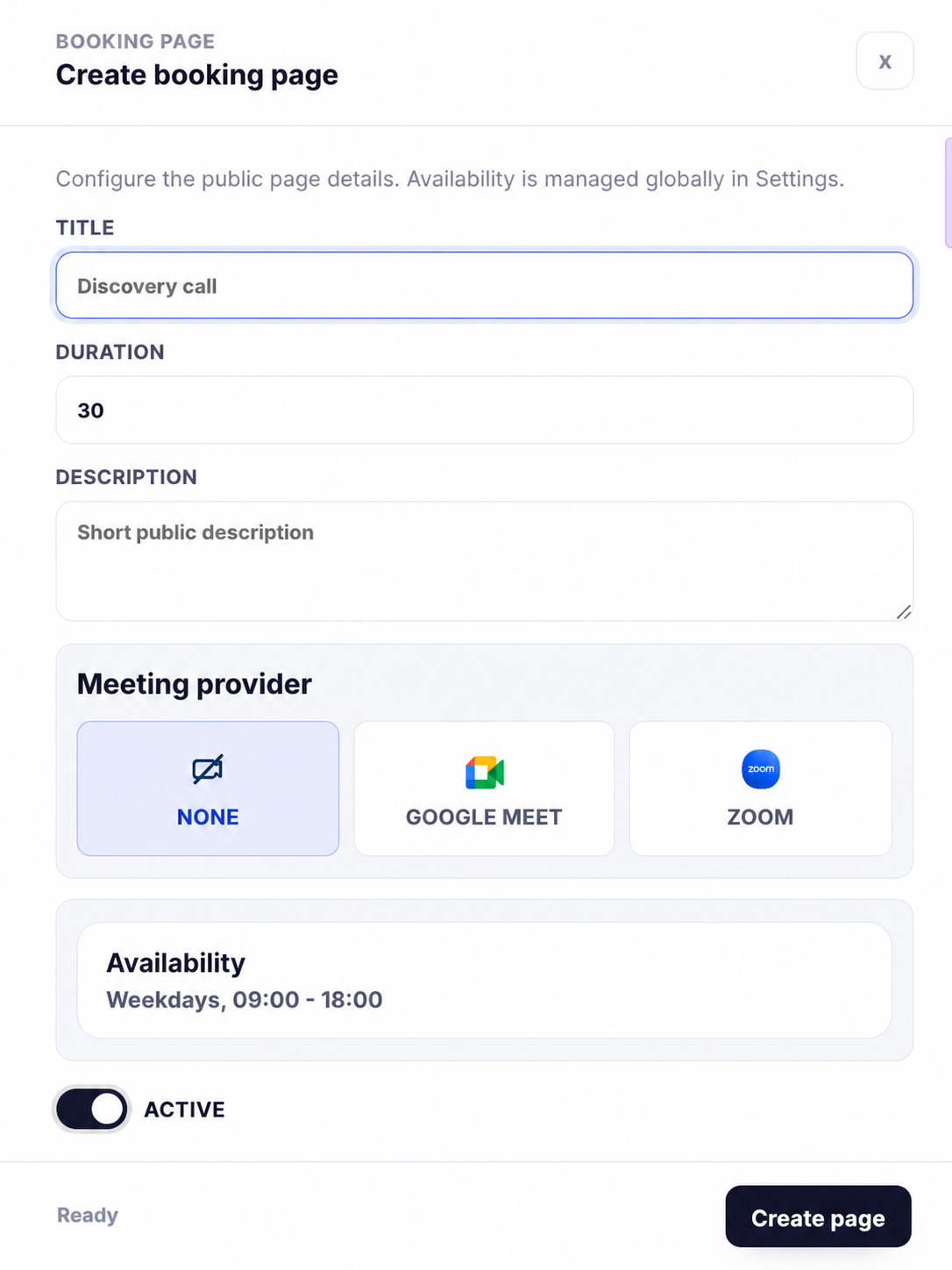
- Open Bookings and select Create booking page.
- Add the meeting title, description, duration, public URL slug, host, and meeting provider.
- Set working hours, buffers, notice period, and any daily booking limit.
- Save and activate the page, then copy its public link.
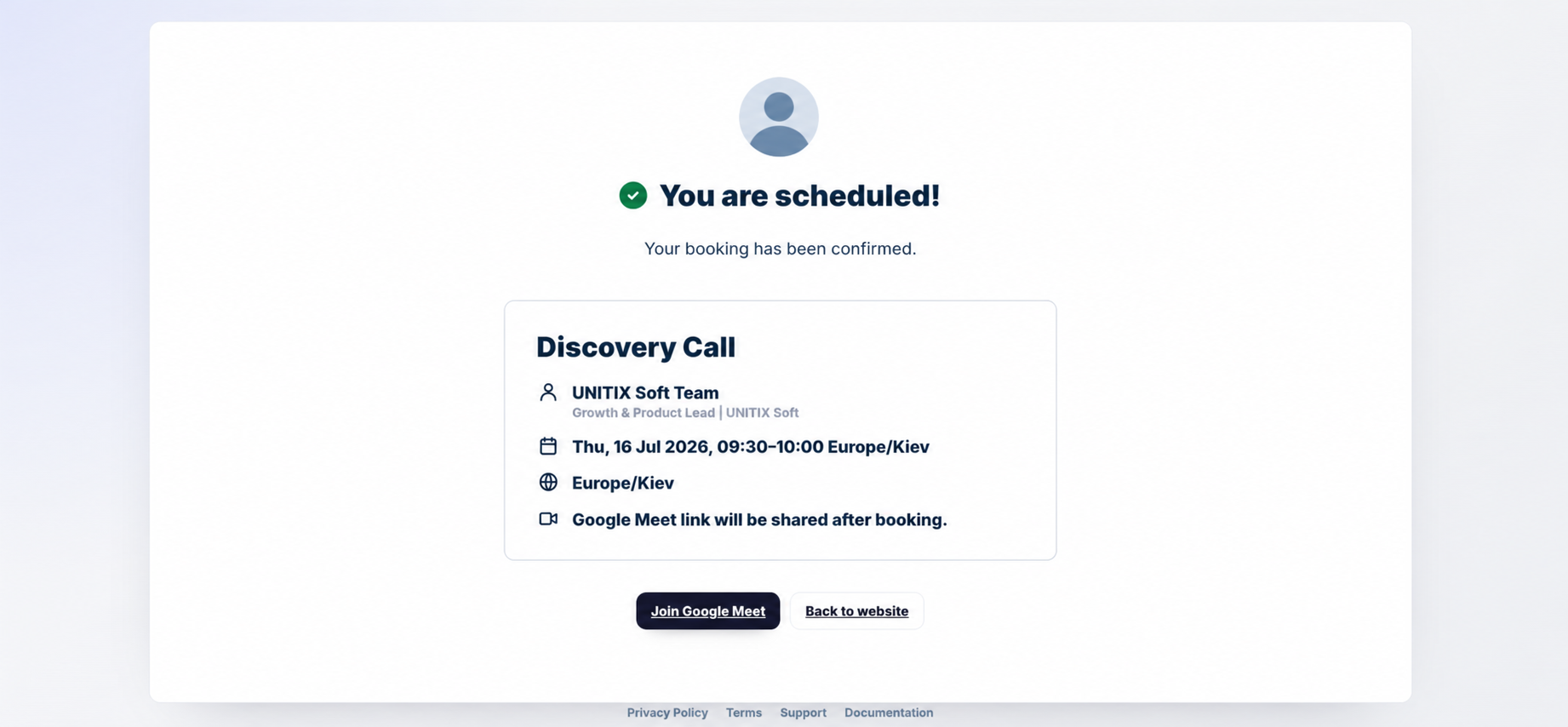
- Open the public URL in a private browser window to verify the complete guest experience.
Availability sync
UNITIX Soft CRM builds available slots from the host’s working hours, timezone, meeting duration, buffers, notice rules, and booking limits. When Google Calendar is connected, busy calendar periods are excluded. Confirm the host timezone and connected calendar before sharing a booking link. If availability looks incorrect, review calendar access, working hours, buffers, and existing bookings.
Automatic meeting creation
After a guest submits an available time, UNITIX Soft CRM creates the booking and attempts to create the selected Zoom or Google Meet conference. The guest and host receive the relevant meeting details through the configured invitation and notification flow. CRM prevents duplicate submissions and checks the slot again before confirmation.
If provider creation fails, check the integration status, reconnect the account if authorization expired, and review the booking record before manually sending any replacement link.
CRM integration
Public bookings are linked to CRM records so the team can track the contact, meeting status, scheduled time, provider, and follow-up work in one place. Use booking history and calendar views to manage upcoming meetings. Treat guest responses and contact information as personal data and grant CRM access only to team members who need it.
Troubleshooting
- Connection fails: confirm that popup or redirect blocking is disabled and the provider account permits OAuth applications.
- No times appear: check timezone, working hours, buffers, booking limits, and busy calendar events.
- No meeting link: confirm the page has the correct provider and that the host integration is connected.
- Need help: contact support@unitixsoft.pro and include the booking page URL and approximate event time, but no passwords or tokens.